Help:Editing: Difference between revisions
(→Files: link minecraft wiki rendering help article) |
(images) |
||
| (2 intermediate revisions by the same user not shown) | |||
| Line 27: | Line 27: | ||
====Blocks==== | ====Blocks==== | ||
For images of blocks, make sure the image dimensions conform to the size of a standard block. This ensures image uniformity, and will make transitioning between images cleaner for infoboxes and galleries. If a block is smaller than the standard block size, do not crop the image, revise the image dimensions to be equivalent to the dimensions of a standard block image instead | For images of blocks, make sure the image dimensions conform to the size of a standard block. This ensures image uniformity, and will make transitioning between images cleaner for infoboxes and galleries. If a block is smaller than the standard block size, do not crop the image, revise the image dimensions to be equivalent to the dimensions of a standard block image instead. | ||
<gallery> | <gallery> | ||
Block image dimensions.png | Apricorn block within a standard block for reference. | Block image dimensions.png | Apricorn block within a standard block for reference. | ||
Red Apricorn (block).png | Apricorn block with reference removed. Note that the image dimensions do not change. | Red Apricorn (block).png | Apricorn block with reference removed. Note that the image dimensions do not change. | ||
</gallery> | |||
If a block is larger than a standard block like a door block, then revise the image dimensions to be that of an image that encompasses the amount of standard block sized spaces the block will take up. For example, since a door block takes up 2 vertical block spaces, the image dimensions should be equivalent to the dimensions of an image of two standard blocks stacked vertically. | |||
<gallery> | |||
Double block image dimensions.png | Since the final stage of Hearty Grains is two standard blocks high, all stages should have the same image dimensions. | |||
Hearty Grains (block, stage 6).png | Hearty Grains at the final stage with reference removed. | |||
Hearty Grains (block, stage 0).png | Hearty Grains at the first stage. Note that the image dimensions are the same. | |||
</gallery> | |||
Crop and plant block models are commonly rotated 45° around the Y-Axis. This can make the model appear flat and two-dimensional when viewed isometrically. For blocks like these, rotate the block or camera view 45° around the Y-Axis before taking the image. | |||
<gallery> | |||
Red Apricorn Sapling (block).png | A Red Apricorn Sapling. | |||
</gallery> | |||
====Items==== | |||
Images of item sprites can be directly taken from file assets. For block item images, i.e. block renders displayed in inventory slots, they can be taken from screenshots in-game, with a GUI scale set to 2. The image should be cropped to the dimensions of the item slot, this should result in a final 32px × 32px image. | |||
<gallery> | |||
Item slots.png | A Healing Machine within an inventory. | |||
Item slot cropped.png | The cropped item slot. | |||
Healing Machine.png | The final image with the item slot background removed. Note that the image dimensions do not change. | |||
</gallery> | </gallery> | ||
Latest revision as of 17:32, 19 December 2025
Style Guide
The purpose of this section is to establish a standardized format for articles and files.
Articles
Pages on in-game subjects like blocks and items should start with a small description of the subject. The first instance of the subject name should be bold.
Capitalization
Article pages should follow the capitalization of the subject if it appears in-game. This guideline should also be followed when linking to other articles. For example, the item Poké Ball is capitalized. Article page titles which do not refer to in-game subjects should be in sentence case, and lowercase when linked. For example, held items is not capitalized.
Point of View
Articles should be written in an encyclopedic manner, therefore the point of view should be in third person. When referring to the player, use "the player" or "players" instead of "you".
Files
File names should follow the capitalization of the subject. Files which do not refer to in-game subjects should be in sentence case. The Wiki will automatically capitalize it on the file's page. If the file name contains spaces, replace them with underscores before uploading. Once uploaded, the file can be linked using spaces.
If there are multiple files with the same name, suffix the additional files with a descriptor surrounded by parenthesis. For existing cases of similar file names, like block and item sprites, item sprite files should take precedence and should have the original file name.
For example, as Red_Apricorn.png denotes the item sprite image, the file name for the block render image should be Red Apricorn_(block).png.
For blocks or other subjects that may have multiple variations like crop stages, add the variation label at the end of the file name. For block renders, this will be separated with a comma and come after block. For example, Apricorn_Block_(stage_1).png or Healing_Machine_(block,_charge_2).png.
If an item has any additional models, such as Poké Balls when held in the main or off-hand, suffix the file name with (model).
Images
- Rendering Tips: Help: Isometric Renders
For formality and standardization, an approximate isometric view, or more accurately, a dimetric view, is preferred for images of in-game subjects like blocks. Avoid taking default in-game screenshots. Isometric projection renders can be generated through programs like Blockbench, which provides the Isometric Right (2:1) viewing angle, or through mods like Isometric Renders.
Blocks
For images of blocks, make sure the image dimensions conform to the size of a standard block. This ensures image uniformity, and will make transitioning between images cleaner for infoboxes and galleries. If a block is smaller than the standard block size, do not crop the image, revise the image dimensions to be equivalent to the dimensions of a standard block image instead.
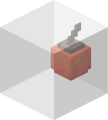
Apricorn block within a standard block for reference.
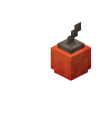
Apricorn block with reference removed. Note that the image dimensions do not change.

.png)
If a block is larger than a standard block like a door block, then revise the image dimensions to be that of an image that encompasses the amount of standard block sized spaces the block will take up. For example, since a door block takes up 2 vertical block spaces, the image dimensions should be equivalent to the dimensions of an image of two standard blocks stacked vertically.
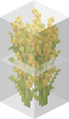
Since the final stage of Hearty Grains is two standard blocks high, all stages should have the same image dimensions.

Hearty Grains at the final stage with reference removed.

Hearty Grains at the first stage. Note that the image dimensions are the same.

.png)
.png)
Crop and plant block models are commonly rotated 45° around the Y-Axis. This can make the model appear flat and two-dimensional when viewed isometrically. For blocks like these, rotate the block or camera view 45° around the Y-Axis before taking the image.

A Red Apricorn Sapling.
.png)
Items
Images of item sprites can be directly taken from file assets. For block item images, i.e. block renders displayed in inventory slots, they can be taken from screenshots in-game, with a GUI scale set to 2. The image should be cropped to the dimensions of the item slot, this should result in a final 32px × 32px image.

A Healing Machine within an inventory.

The cropped item slot.

The final image with the item slot background removed. Note that the image dimensions do not change.


Moving
If moving or renaming files, do not allow the old file name to redirect to the new one.
Redirects
Redirects can be done by creating an article with #REDIRECT [[article]] as the content. Redirects should be created sparingly, and should only be created to help users find articles. Redirects should never be linked to. Linking to a page with a different name can instead be done by separating the article title and some specified text with a vertical bar. For example, [[Link Cable|link cables]] will be displayed as link cables.